 Tutor
TutorGetting started
On first launch TutorDesk asks for two things: your institute or tutor name and your currency. Both appear on every receipt and can be changed later under Settings → Institute profile.
- Create a batch. Batches tab → +. Give it a name, a monthly fee, and tick the days it meets. The days you tick drive "Today's classes" and reminders.
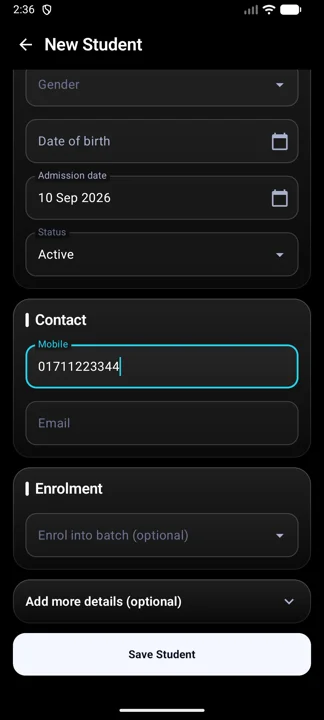
- Add students. Students tab → +. Only the name is required. Pick a batch in the Enrolment box to enrol them in the same step.
- Take today's attendance. Home → Today's classes → Take attendance.
- Collect a fee. Open the student → payment icon. The amount fills in from what they owe. Save, then share the receipt on WhatsApp.
- Back up. Settings → Backup & Restore → Export. Do this once a week; the Home screen nudges you when it is overdue.
Home screen
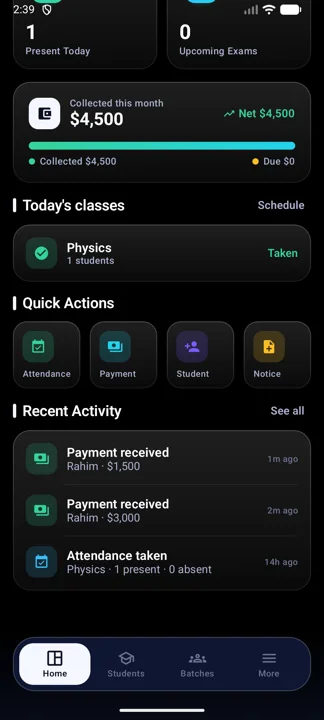
Home is a live summary. Every tile is tappable and opens the screen behind it.
Stat tiles
Total students, running batches, present today, upcoming exams.
Finance card
Collected this month against outstanding due, with a "students owe fees" row that opens the Dues screen.
Today's classes
Batches that meet today, ordered by start time, with a Take attendance shortcut. Turns green once attendance is saved.
Recent activity
Latest payments, attendance sessions and upcoming exams.
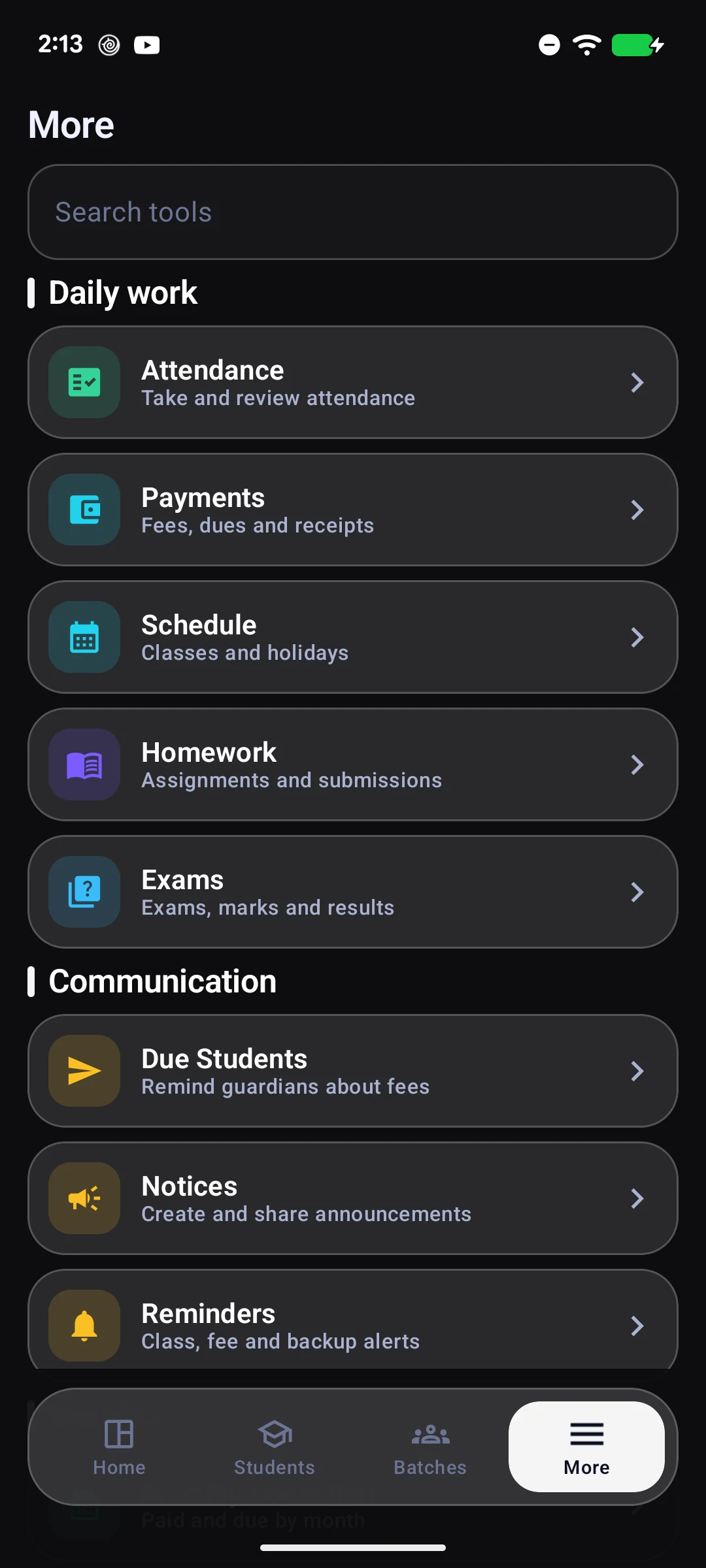
The bottom bar has four tabs: Home, Students, Batches and More. Everything else lives under More. The search icon at the top of Home opens global search.
Batches
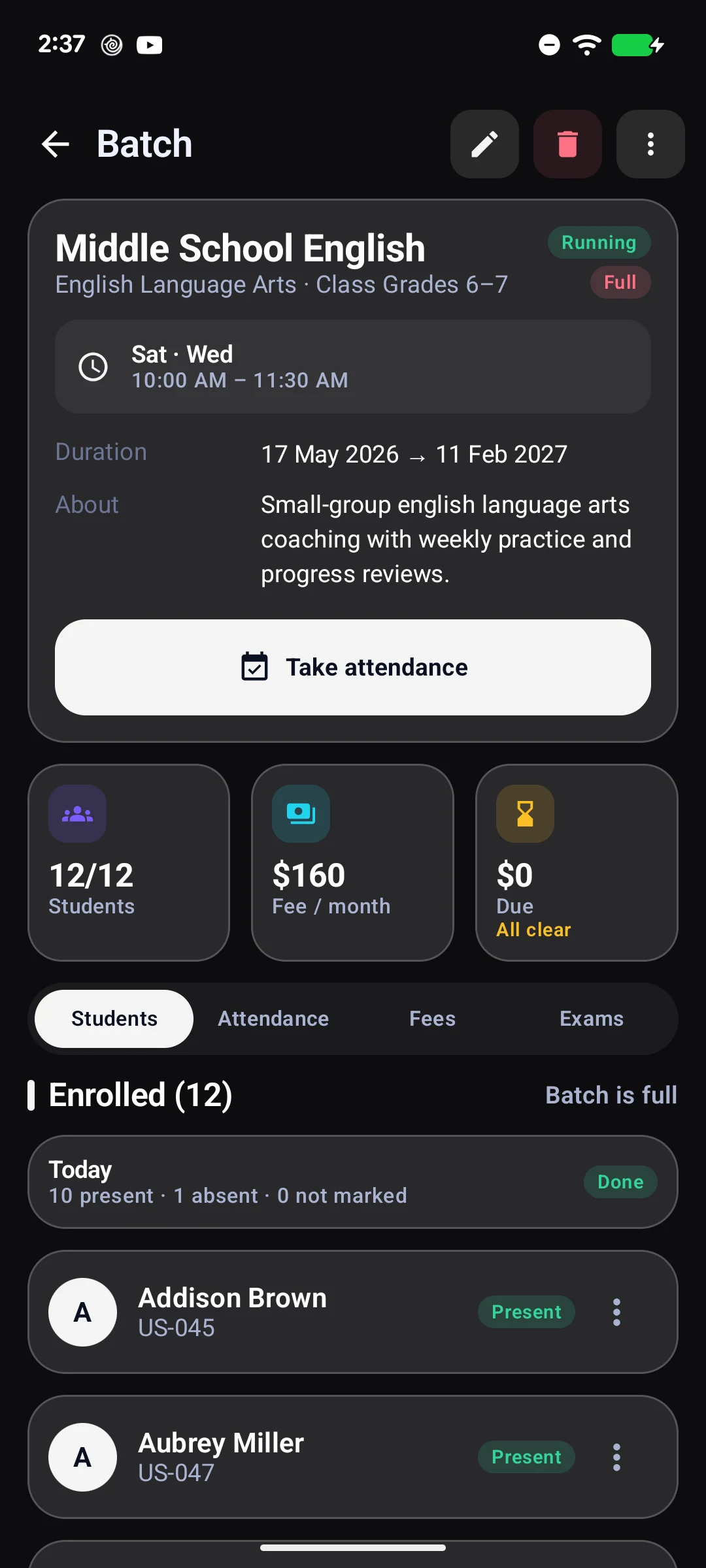
A batch is a class group with its own monthly fee and timetable. Students can be in more than one batch.
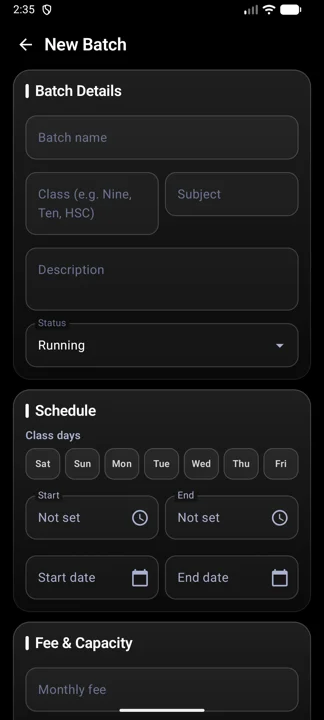
Creating a batch
- Class days: tap the day chips (Sat to Fri). This is what makes the batch appear in Today's classes and in the Schedule week view.
- Start / End time: time pickers. Used for ordering, clash warnings and the morning reminder.
- Monthly fee: the amount each enrolled student owes per month.
- Maximum students: 0 means unlimited. When set, enrolment stops at the cap.
- Status: Running, Completed or Suspended. A Completed batch stops charging fees after its end date.
Inside a batch
- Students tab: Add students opens a searchable list with checkboxes so you can enrol many at once. Each row's menu has Remove, Transfer to another batch, Fee override and View profile.
- Attendance tab: last seven days at a glance plus a link to the full report.
- Payments tab: this month's collection and who still owes, with how many months they are behind.
- Exams tab: exams linked to this batch.
- Menu: Take attendance, Clone batch, Share roster, Export CSV.
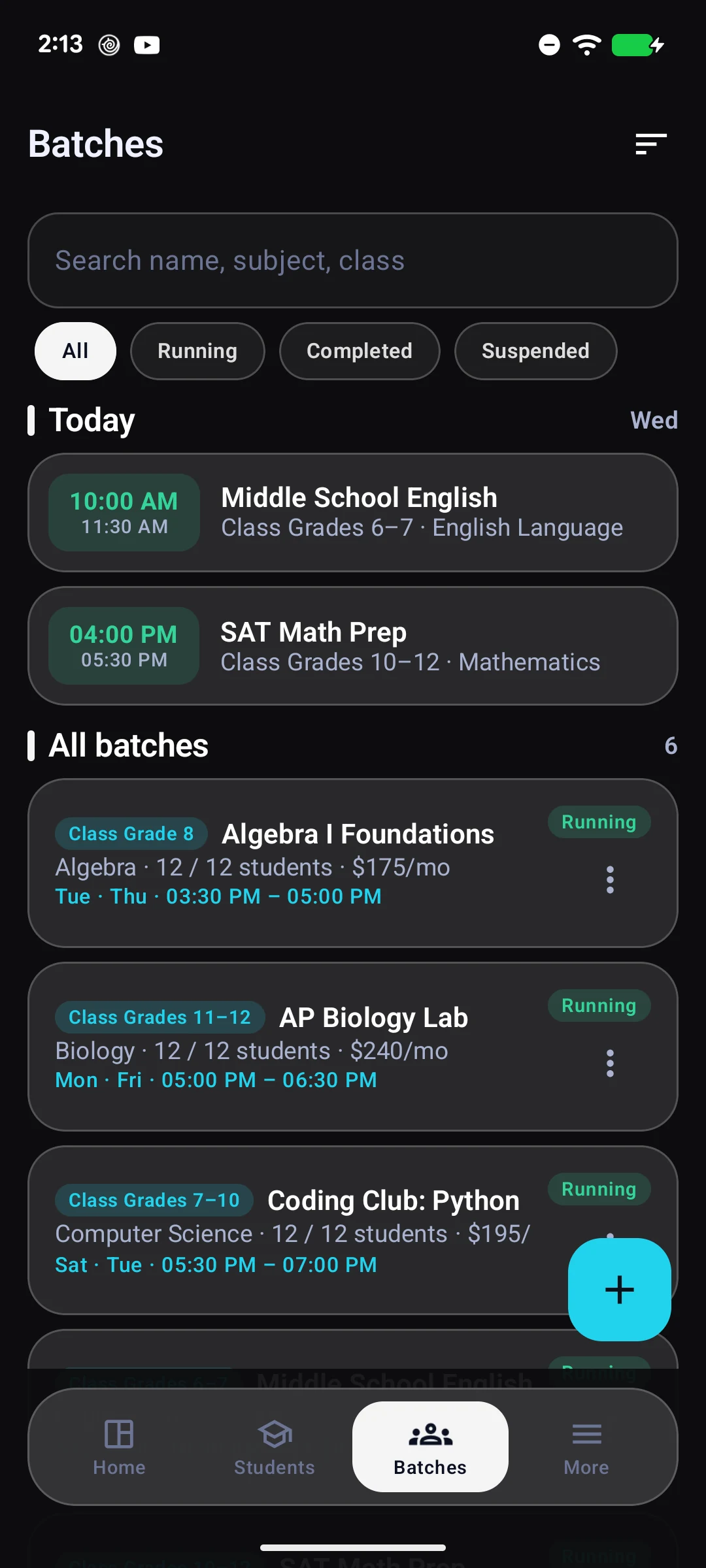
The Batches list has search, status filters, a sort menu, and a Today section at the top on class days.
Students
Adding and editing
Name is the only required field. Mobile numbers are validated, and the form warns if another student already uses the same number. Expand "Add more details" for parents, school, class, roll and address. Admission date defaults to today.
The list
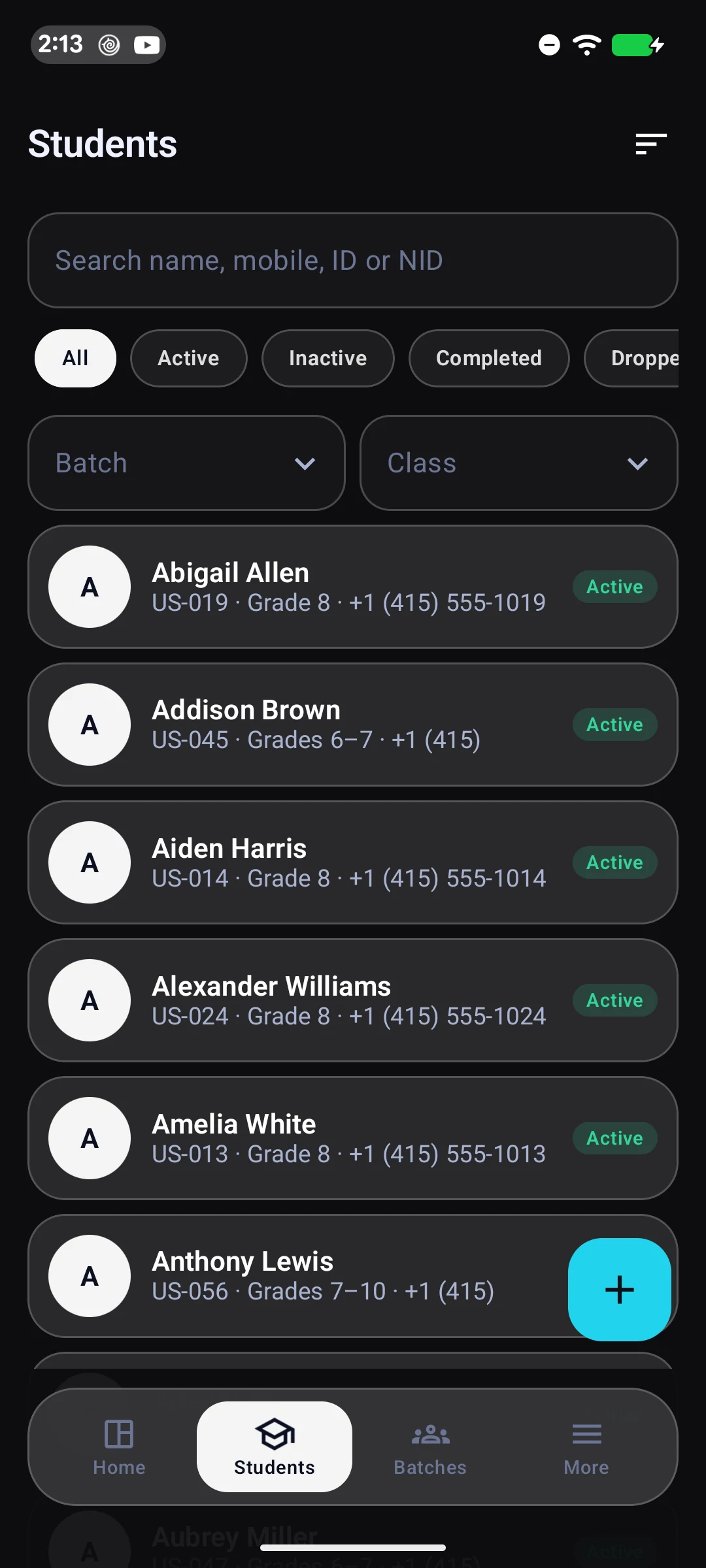
- Search by name, mobile, student ID, or a parent's number.
- Filter by status, batch or class. Sort by name, newest, class, or highest due.
- Rows show a Due badge when the student owes money.
- Long-press a row to select many. You can then change status, enrol them all into a batch, delete, or copy names and numbers.
The profile
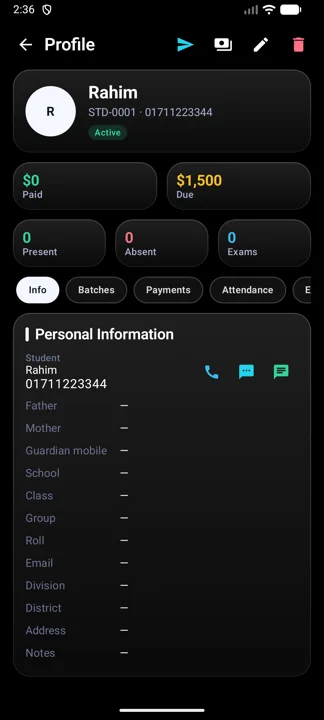
The header shows Paid, Due, attendance percentage, Late and Absent counts. Every phone number has call, SMS and WhatsApp buttons. Tabs:
Batches
Enrol, unenrol, transfer, or set a per-student fee override and scholarship percentage.
Payments
Full history, plus the unpaid months and a Remind button that drafts a message to the guardian.
Attendance
Day-by-day records with a month filter.
Exams
Marks, percentage, grade and pass or fail for every exam taken.
Deleting a student is reversible for a few seconds through the Undo snackbar. Deleted records are hidden, not destroyed, and stay inside backups.
Attendance
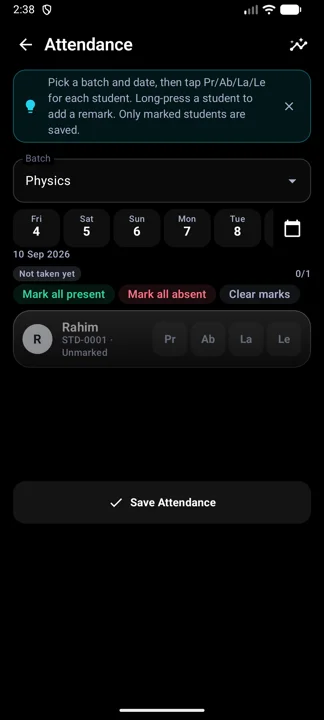
- Open from Home → Today's classes, from a batch, or More → Attendance. The batch and today's date are pre-selected when you come from Home.
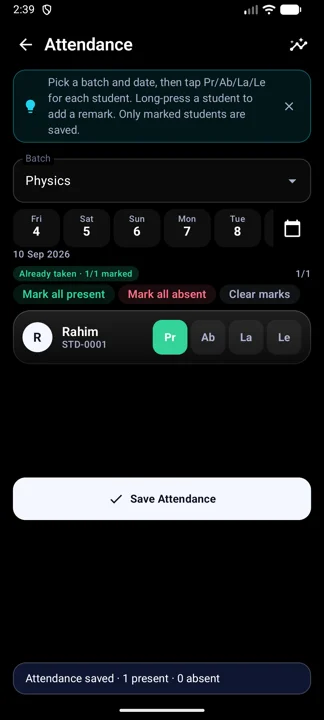
- Tap Pr, Ab, La or Le on each student. Unmarked students stay grey and are not saved, so an accidental Save cannot mark the whole class present.
- Use Mark all present, then fix the exceptions. Mark all absent and Clear marks are next to it.
- Long-press a student to add a remark, for example "left early".
- Tap Save Attendance. The chip above the list changes to "Already taken" with the count.
- The date strip shows the last seven days. A dot under a day means attendance exists for it. The calendar icon picks any other date.
- You are warned, but not blocked, when the date is a holiday, a future date, or a day the batch does not meet.
- Leaving the screen or changing the batch with unsaved marks asks you to confirm.
- Class not held (under Clear marks) deletes the day's records for that batch.
Attendance report
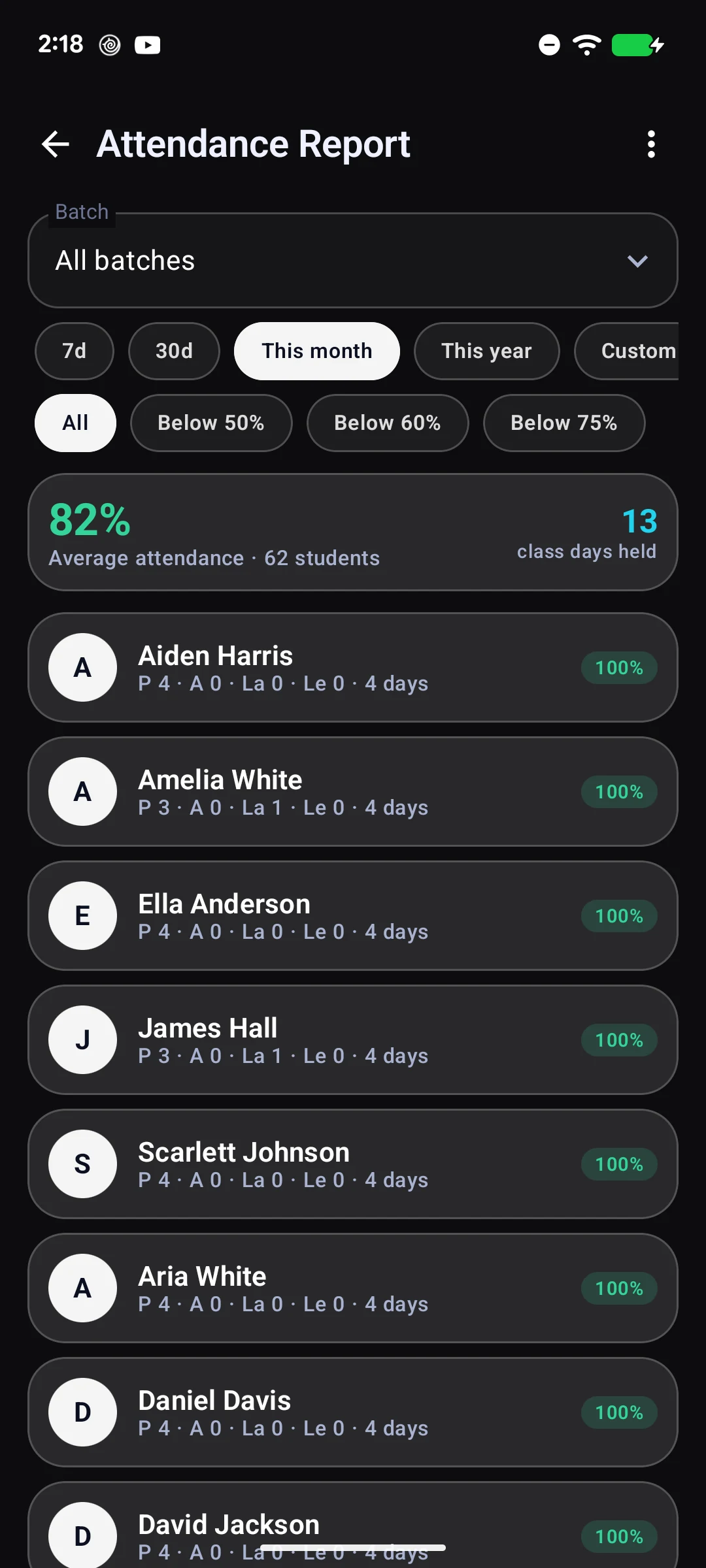
More → Attendance Report. Pick one batch or all, a preset range or custom dates, and optionally a "below X%" filter to find students at risk. Tap a row for that student's day-by-day list and a monthly grid. Share the report as an image or export CSV.
Fees and payments
How dues are calculated
TutorDesk works out what every active student owes automatically. The rules:
| Rule | What it means |
|---|---|
| Months owed | From the month of enrolment up to and including the current month. Enrolling on the 28th still owes that month. |
| Monthly amount | The batch's monthly fee, unless the student has a fee override or scholarship set in their profile → Batches tab. |
| Payments | Monthly-fee payments are applied to the oldest unpaid month first, across all of the student's batches. Discounts count as paid. |
| Advance | Paying more than what is owed creates a credit that covers future months. |
| Other fee types | Admission, exam, materials and other payments are recorded as income but never reduce monthly dues. |
| Completed batches | Stop charging after the batch end date. Inactive or dropped students are excluded from totals. |
Recording a payment
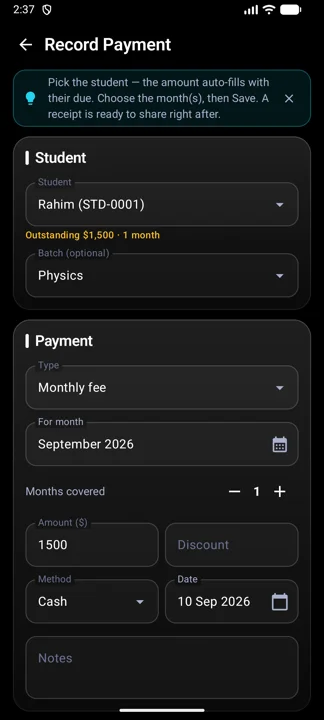
- Open the student and tap the payment icon, or tap Collect on any due row. You can also go to More → Payments → +.
- The form shows what they owe and any credit. The amount and the oldest unpaid month fill in automatically.
- Choose the Type: Monthly fee, Admission, Exam, Materials or Other.
- For monthly fees, set Months covered to collect several months at once. The amount recalculates.
- Enter a discount, the method (Cash, bKash, Nagad, Rocket, Bank) and the payment date if it was not today.
- Tap Save & Show Receipt. The receipt dialog opens immediately.
A yellow line appears if the amount is more than the outstanding due; the extra is kept as credit. Payments can be edited or deleted later from the Payments list.
The Payments screen
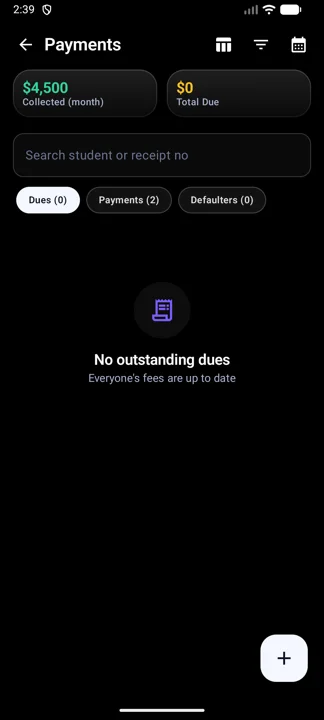
- Dues: everyone who owes, with months behind and a Collect button.
- Payments: history with search, filters for batch, method, type and date range, and a total for the filtered set.
- Defaulters: students two or more months behind.
- Toolbar: filters, CSV export, and Monthly Collection.
Receipts
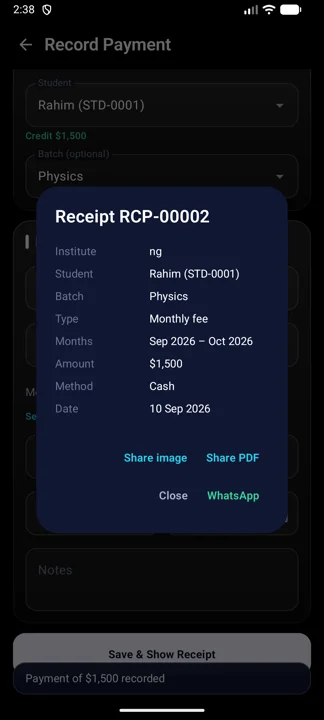
Every payment gets a receipt number in the form RCP-00012. The receipt dialog shows institute, student, batch, type, months covered, amount, method and date. Share it as:
- Share PDF: an A5 PDF with your logo, address and phone from Institute profile.
- Share image: a PNG for quick sending.
- WhatsApp: opens WhatsApp directly with the PDF attached.
Receipts, result sheets and posters carry a small "Made with TutorDesk" line.
Dues and reminders
More → Due Students lists everyone who owes, with the unpaid months, a batch filter, and per-row Call, SMS, WhatsApp and Collect buttons. Remind all walks through each guardian on WhatsApp one after another.
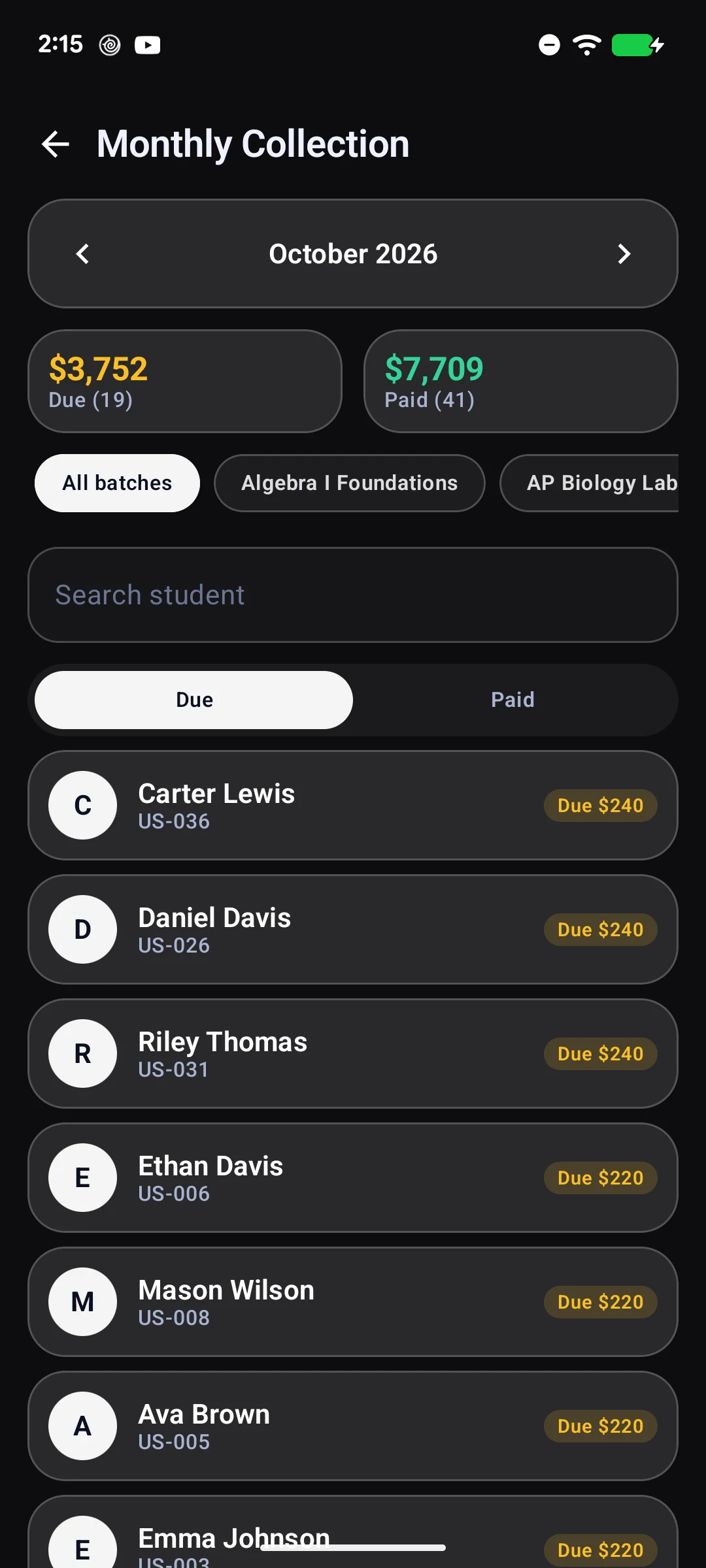
More → Monthly Collection shows a single month split into Paid and Due, filtered by batch. Use the month picker in the header, tap a due row to collect, or export the month as CSV.
{student}, {amount} and {months} are filled in for you.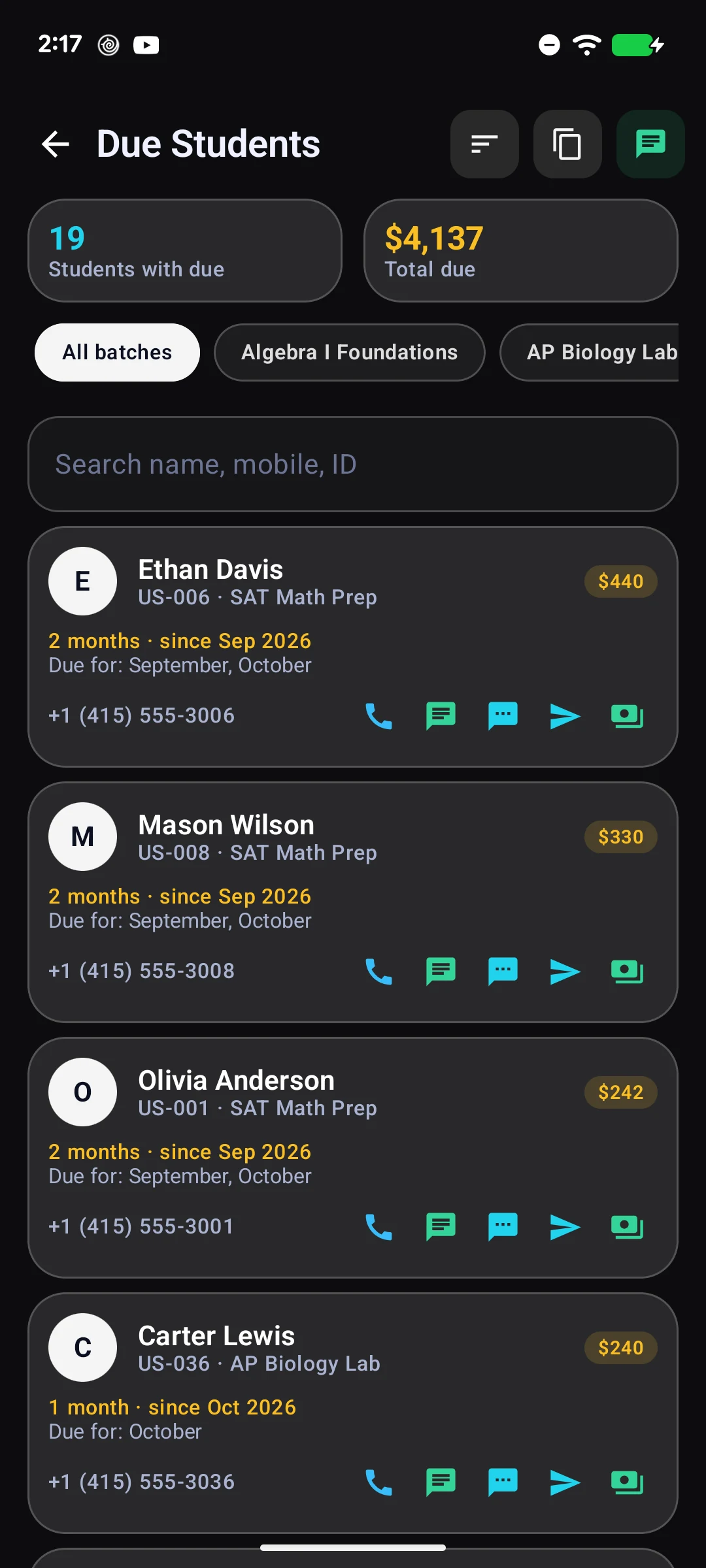
Expenses
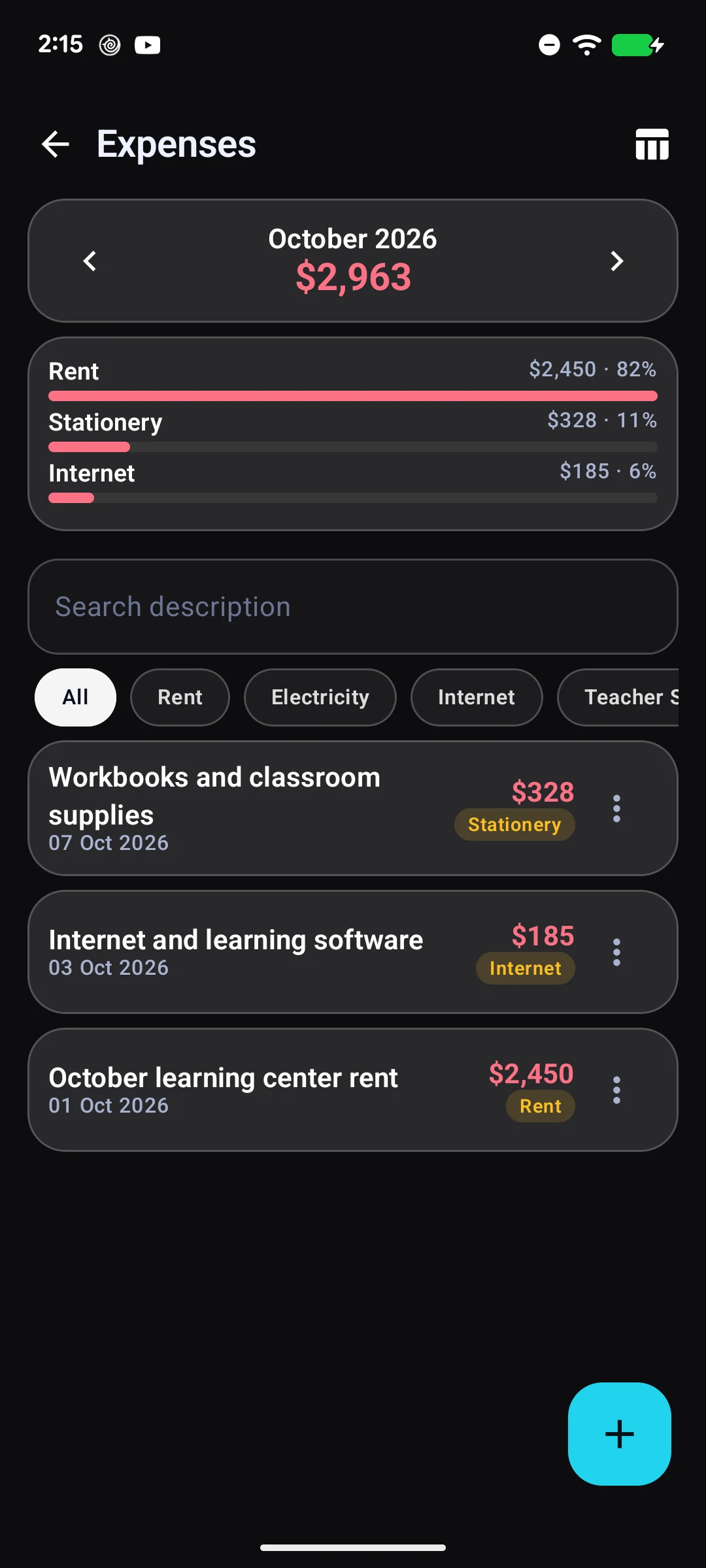
More → Expenses. Record rent, electricity, salaries, marketing, stationery and other costs with an amount, category, date and note. The screen shows one month at a time with arrows to move between months, a category breakdown, search and CSV export. Tap a row to edit; its menu also offers Copy to next month for recurring bills.
Exams and results
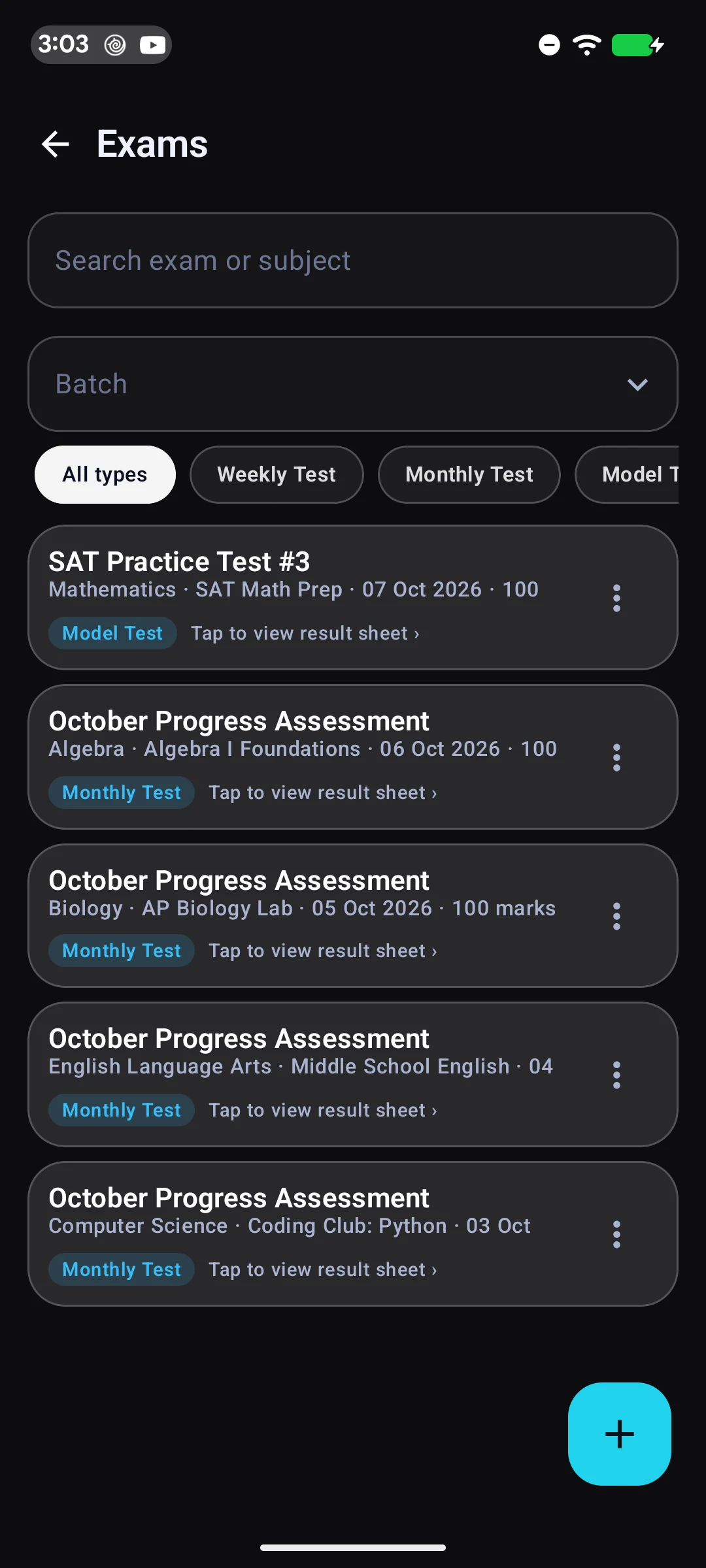
- More → Exams → +. Name, type (weekly, monthly, model test, assignment, quiz), subject, total marks, date and batch.
- Open the exam → Enter marks. Type each student's marks or toggle Absent. Marks above the total are refused. "Mark unmarked as absent" finishes the sheet quickly.
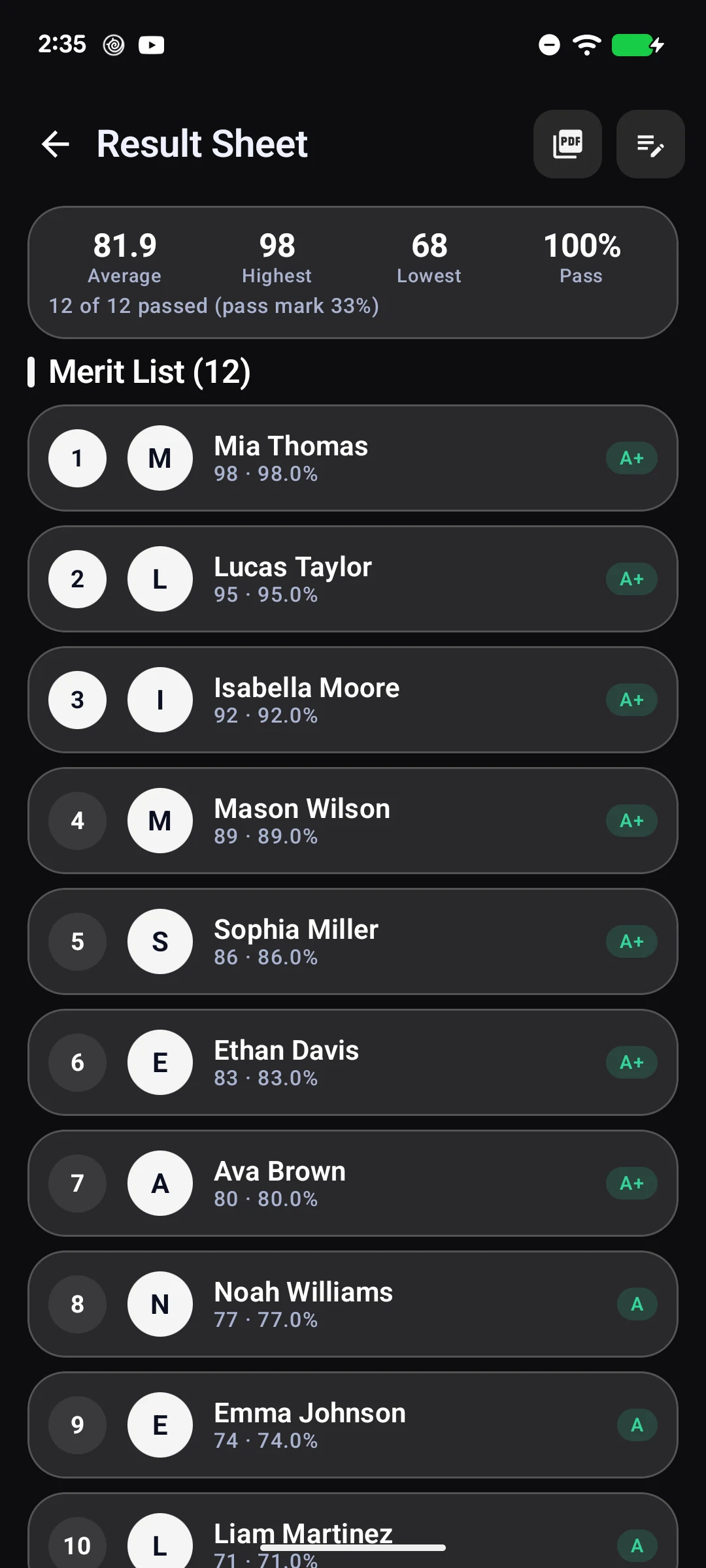
- Back on the result screen you get the merit list with position, percentage, grade and pass or fail, plus a stats card: average, highest, lowest and pass rate.
- Share the whole sheet as a PDF, export CSV, or share one student's result card.
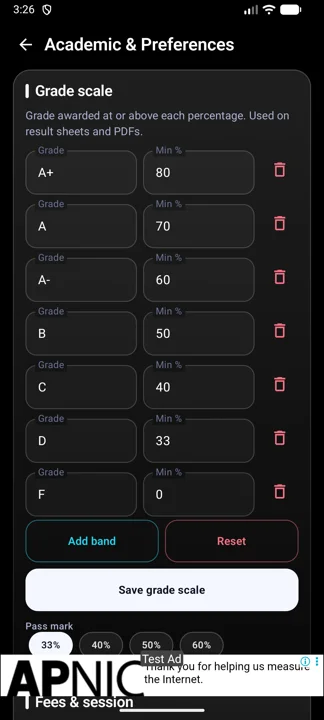
Grades come from the grade scale in Settings → Academic & preferences. The default is A+ from 80%, A from 70%, A- from 60%, B from 50%, C from 40%, D from 33%, otherwise F, with a 33% pass mark.
Homework
More → Homework. Assign work with a title, batch, subject, description, due date and an optional attachment (a photo of the worksheet, a PDF). Overdue items turn red and sort to the top.
Tap a homework to open Submissions: every student in the batch with Pending, Submitted or Late chips and an optional marks box. "Mark all submitted" then fix exceptions, and Save. The list shows "8/20 submitted" for each item.
Notices and SMS
More → Notices is your announcement board: holidays, schedule changes, exam dates, fee deadlines. Each notice has a type, a date, an audience (all students or one batch) and a pin option.
Sending a notice by SMS
- While writing the notice, turn on Also send by SMS after publishing.
- Choose Students, Guardians or Both. Guardians means the guardian, father and mother numbers on each profile.
- Tap Publish & Send SMS. Your phone's messaging app opens with every number and the notice text filled in. Press Send there.
To resend later, use Send as SMS in the notice's menu. The menu also has Share text and Share as image, which makes a square poster for WhatsApp groups.
Schedule and holidays
More → Schedule shows a week strip and the classes for the selected day. Regular classes come from each batch's class days and times, so you never re-enter a weekly timetable. Use + for a one-off class such as a makeup session. Overlapping classes show a warning icon.
The beach icon adds a holiday for the selected day. Holidays show as a banner, warn you on the attendance screen, and are skipped by the morning class reminder.
Each row has a Take attendance shortcut for that batch and date.
Reports
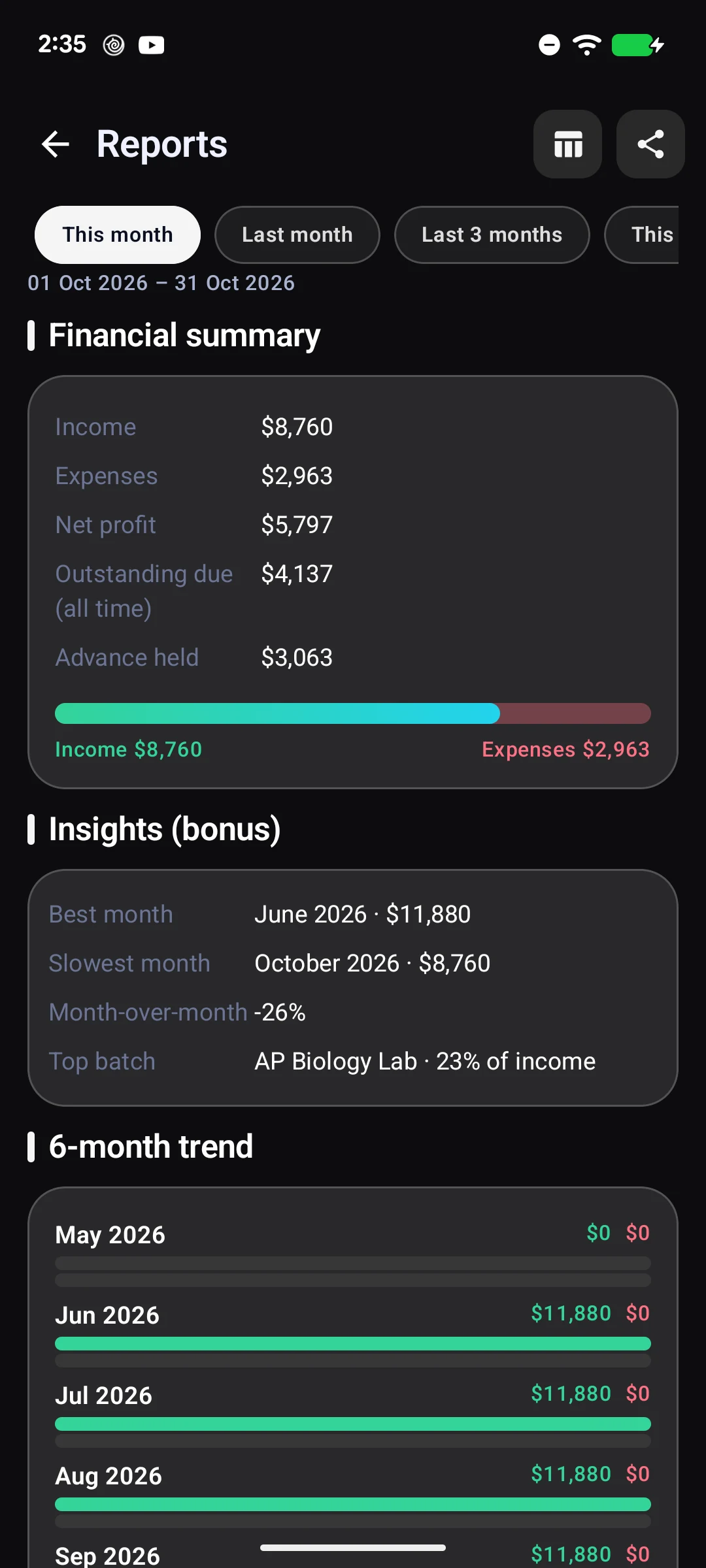
More → Reports. Pick This month, Last month, Last 3 months, This year or a custom range. You get income, expenses, net profit and outstanding due, a six-month trend, income by batch and by type, expenses by category, the top defaulters, and student and batch counts. Share a text summary or export everything as CSV from the toolbar.
Search
The search icon on Home, or More → Search, looks across students (name, ID, any phone number), batches, receipts, exams, homework and notices. Recent searches appear as chips.
Daily reminders
More → Reminders. Turn on daily notifications and pick what you want:
Morning digest
Today's classes, fees due (on the due day and two days before), exams tomorrow, and a backup nudge when the last backup is over a week old.
Evening check
Batches that met today but have no attendance saved.
Choose the hour for each. Reminders are computed on the phone from your own data; nothing is sent anywhere.
Settings
| Section | What you can set |
|---|---|
| Institute profile | Name, logo, address, phone, email, default monthly fee, pass percentage, late grace minutes, currency. |
| Academic & preferences | Grade scale editor, pass mark, fee due day, academic session, whether Late counts as present, message templates, language, daily auto-backup, and Delete all data. |
| Appearance | Theme colour, text size, background style. |
| App lock | Set, change or remove a PIN; enable fingerprint or face unlock. |
| Backup & Restore | Export, import, on-device backups. |
Message templates are the text used for fee reminders, absent alerts, results and receipts. Available placeholders: {student} {amount} {months} {institute} {date}.
Fee due day is the day of the month used in reminder messages and the morning notification.
Backup and restore
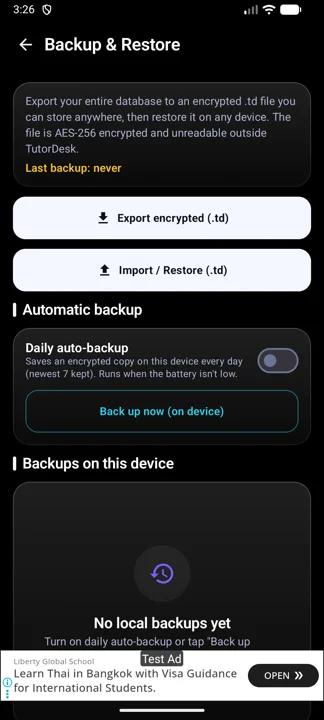
All data lives on your phone only. Losing or resetting the phone loses the data unless you have a backup.
- Export encrypted (.td): saves an AES-256 encrypted file wherever you choose, including Google Drive through the file picker. Keep one off the phone.
- Import / Restore: pick a .td file. You see a preview of what it contains, then choose Merge (adds records, keeps the rest) or Replace everything (wipes the phone first, best when moving to a new phone).
- Daily auto-backup: keeps the seven newest encrypted copies in the app's private storage and lets you restore any of them. These are deleted if the app is uninstalled, so still export a file regularly.
App lock
Settings → App Lock sets a PIN. When enabled, TutorDesk locks whenever it goes to the background. Turn on biometrics to unlock with fingerprint or face. After five wrong attempts the lock pauses for a short time, doubling on repeated failures. Forgot the PIN? Tap "Forgot PIN?" and confirm with your phone's own screen lock to set a new one. Your data is untouched.
Ads and purchases
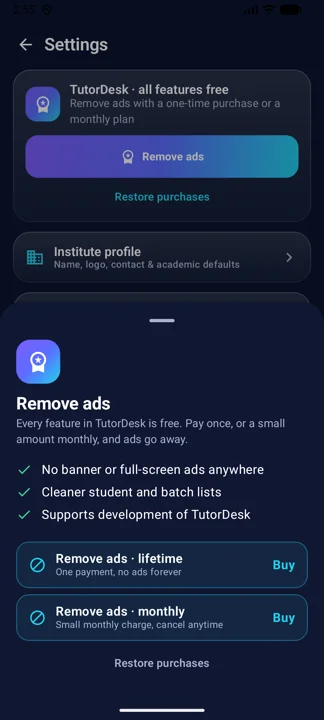
Every feature in TutorDesk is free. The free app shows banner ads. A purchase does exactly one thing: removes the ads.
Remove ads · lifetime
One payment, no ads forever. Also restores on any phone signed into the same Google account.
Remove ads · monthly
A small monthly subscription. Cancel any time from Google Play; ads return when it ends.
Find both under Settings → Remove ads. Use Restore purchases after reinstalling. Ads never appear on the lock screen, inside forms, or in front of a parent during a payment.
FAQ
A student's due looks wrong. Where does the number come from?
Open the student → Payments tab. It lists each unpaid month. Dues run from the enrolment month, so check the enrolment date in the Batches tab, and any fee override or scholarship. Payments recorded with a type other than Monthly fee do not reduce dues.
Can I change a payment after saving?
Yes. More → Payments → Payments tab → the row's menu → Edit. Deleting shows an Undo for a few seconds.
Why is today's class missing from Home?
The batch has no class days ticked, is not Running, or today is not one of its days. Edit the batch and tick the days.
I saved attendance for the wrong day.
Open Attendance, pick that date, tap Clear marks → Class not held to remove the records, then take attendance on the right date.
Does the app send SMS or WhatsApp messages by itself?
No. It opens your messaging app or WhatsApp with the text and recipients filled in; you press Send. Nothing is sent without you.
Where are my backups?
Exported .td files are wherever you saved them. Auto-backups are listed under Settings → Backup & Restore → Backups on this device.
Is anything uploaded to the internet?
Your data stays on the phone. Internet is used only for ads, purchases and anonymous crash reports.
What about the Bangla language option?
The setting is saved now and the translation is being added in a coming update.